# Send notifications by email or webhook
> Create OpenCTI notifiers that send notifications by email or to a webhook, write their EJS templates, test them and choose who can use them.
- URL: https://filigran.io/docs/opencti/configure/notifiers/
- Products: OpenCTI 7.261119.0
- For: administrators, developers
- Type: How-to guide
A notifier is the channel a notification goes through: the notification center of the interface, an email, or an HTTP call to another tool such as a chat or a ticketing system. This page shows how to create your own notifiers and write their templates, so that users can pick them in their triggers and digests, and playbooks can use them.
Two notifiers are built in and cannot be changed: **User interface**, which writes to the notification center, and **Default mailer**, which sends the standard OpenCTI email. Everything else is a custom notifier.
*(OpenCTI 7.261117 and later)*
A third built-in notifier, **Ingestion health default mailer**, sends ingestion health activity events to the recipient's email address. It cannot be changed either.
## Before you start {#before-you-start}
- Your role has the **Manage customization** capability.
- For email notifiers, the platform can send email. See [SMTP](https://filigran.io/docs/opencti/administer/smtp/).
- For a webhook, you have the URL of the receiving service and know the JSON body it expects.
## Choose a connector {#choose-a-connector}
Each custom notifier is built on one of three connectors:
| Connector | Sends | You set |
| --- | --- | --- |
| Platform mailer | An email whose HTML you write, to the recipient's address | `title` (the subject) and `template` (the body), both EJS templates, required; `url_suffix`, optional, which your template reads as a variable |
| Simple mailer | An email in the standard OpenCTI layout, to the recipient's address | `title`, the subject as an EJS template, required; then, all optional: `header`, a line under the platform title, and `footer`, a line above the copyright, both plain text where `[text](https://...)` becomes a link; `logo`, the URL of an image shown at the top; `background_color`, a CSS color for the band above it; `url_suffix`, added to the **View** link of each event, after `?source=email&` |
| Generic webhook | An HTTP request with a JSON body | `verb` (`GET`, `POST` or `PUT`), `url` and `template` (the JSON body, as an EJS template), required; `params` (query string) and `headers`, optional, as name and value pairs |
`url_suffix` tags the traffic the email brings, for example `utm_source=opencti&utm_medium=email`.
> **Warning**
>
> The **DELETE** verb of the Generic webhook is stored with a leading space in this version, and the call fails. Use `POST` or `PUT`.
A notifier works per recipient. When a trigger or a digest has several recipients, for example a group, OpenCTI renders the template and sends once for each of them, with the data that recipient is allowed to see. A mailer then reaches each analyst; a webhook is called once per recipient, so a chat channel would get the same message several times. Attach a webhook notifier to a trigger with a single recipient, such as the user who owns the channel. Not a service account: OpenCTI sends no notification to a service account, whatever the notifier.
## Create a notifier {#create-a-notifier}
1. Open **Settings > Customization > Notifiers** and click **Create Notifier**.
2. Fill **Name** and **Description**. Users see them when they choose a notifier.
3. Pick the **Notification connector**. Its fields appear under the form.
4. In **Accessible for**, add the users, groups or organizations that may use the notifier. Users with **Manage customization** always see every notifier.
5. Fill the fields of the connector. For a template, see [Write a template](#write-a-template).
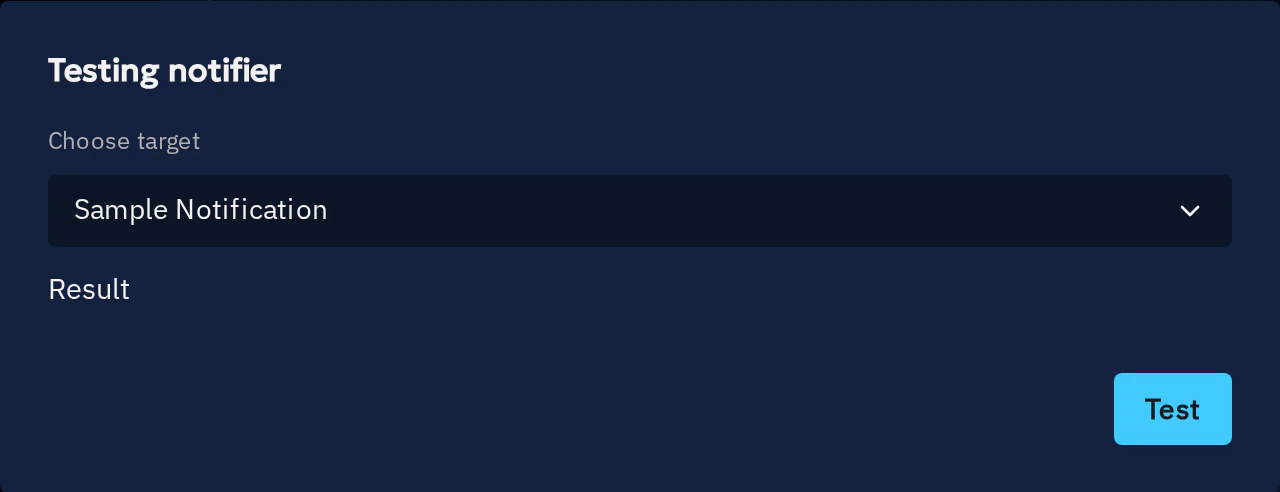
6. Click **Test**. In the **Testing notifier** dialog, pick a sample in **Choose target** (**Sample Notification**, **Sample Digest** or **Sample Activity Alert**) and click **Test** again. A mailer sends the sample to your own email address; a webhook calls its URL. The dialog shows **OK** or the error.
7. Click **Create**.
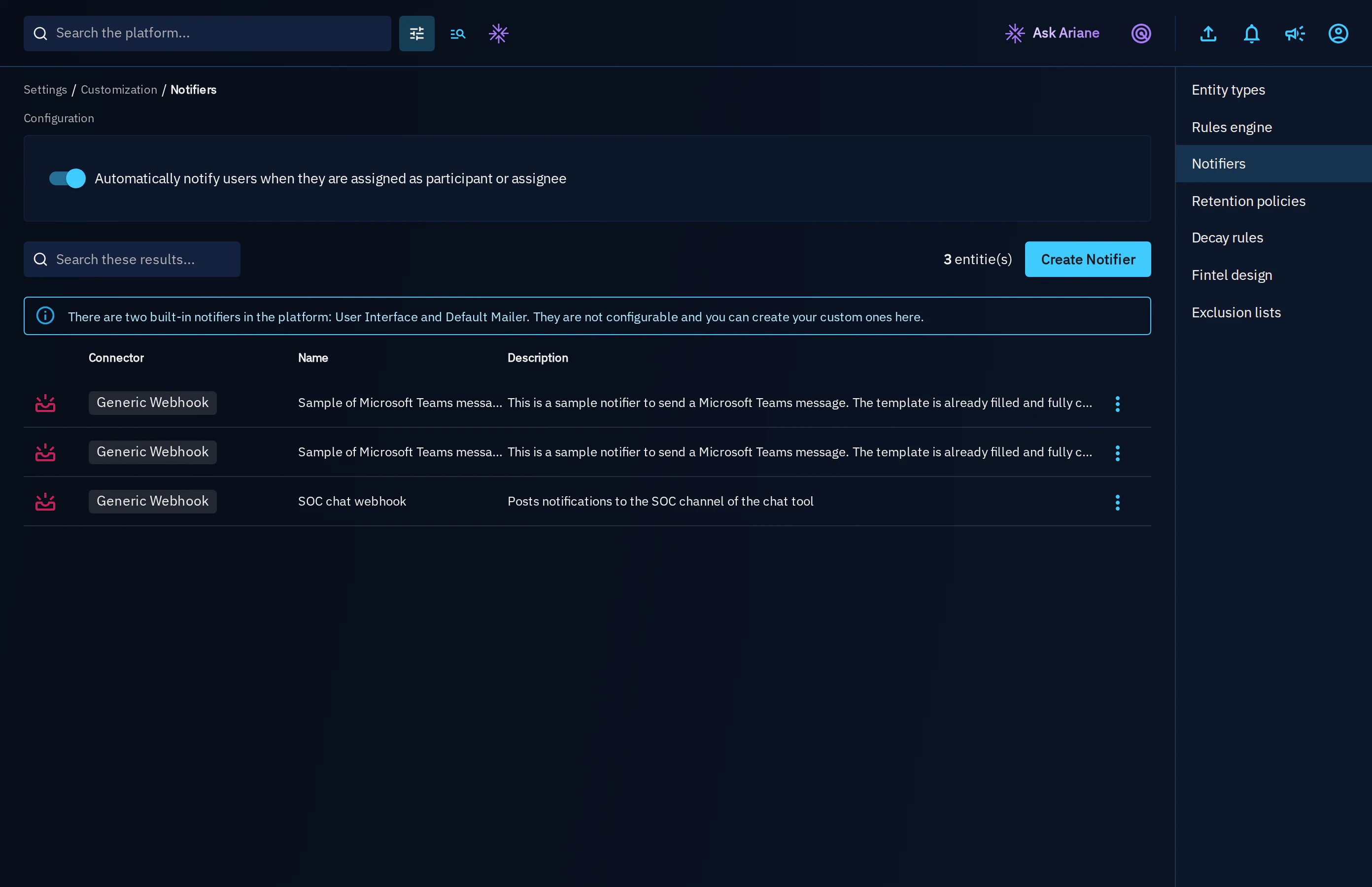
The notifier now appears in the notifier lists of triggers, digests, activity alerts and the **Send to notifier** playbook component, for the users of **Accessible for**. To change it, open the menu of its row and choose **Update**: the **Notifier edition** panel opens, with the same fields and **Test** button; click **Save**. To remove it, choose **Delete**: triggers that used it stop sending through it.
*(OpenCTI 7.260811 and later)*
The **Configuration** card at the top of the page has one platform setting: **Automatically notify users when they are assigned as participant or assignee**. When it is on, users get a notification each time someone adds them as assignee or participant of an object.
The platform also comes with two webhook notifiers for Microsoft Teams, ready to adapt. See [Microsoft Teams notifier samples](https://filigran.io/docs/opencti/configure/notifiers/samples/).
## Write a template {#write-a-template}
Templates use [EJS](https://ejs.co/), HTML or JSON with tags that insert data:
| Tag | Does |
| --- | --- |
| `<%= value %>` | Inserts the value, escaped: for HTML in a mailer, for a JSON string in a webhook |
| `<%- value %>` | Inserts the value as it is, for example `<%- JSON.stringify(data) %>` |
| `<% code %>` | Runs JavaScript without output, for loops and conditions |
### The data a template receives {#the-data-a-template-receives}
| Variable | Contains |
| --- | --- |
| `content` | A readable summary: a list of `{title, events}`, where each event has `operation`, `message` and `instance_id`. `notification_content` is the same list |
| `data` | The full events: a list of `{notification_id, type, message, instance}`, where `instance` is the STIX 2.1 object, with its OpenCTI extension |
| `notification` | The trigger: `id`, `name`, `trigger_type` (`live` or `digest`) and `created` |
| `user` | The recipient, as `user.user_email` |
| `settings` | The platform: `platform_title`, `platform_email`, `platform_base_url` and `platform_theme` |
| `platform_uri` | The base URL of the platform, to build links such as `<%= platform_uri %>/dashboard/id/<%= content[0].events[0].instance_id %>` |
| `doc_uri`, `background_color` | The documentation URL, and the background color of the platform theme |
Anything else is removed before rendering: a template cannot read other fields of the trigger, the user or the settings.
The `message` of an update says who made it, for example ``[report] Velvet Harbor infrastructure moves to new hosting - `jdoe` adds `hotel-sector` in `Label` ``.
*(OpenCTI 7.261117 and later)*
A test sends samples that exist nowhere in the platform. Each `instance` holds only `id`, `type`, `entity_type` and `name`: the report `[TEST] Sample report`, plus the malware `[TEST] Sample malware` in **Sample Digest**, or the synchronizer `[TEST] Sample synchronizer` in **Sample Activity Alert**. `notification` holds `created`, `trigger_type` and a `name`, such as `[TEST] Sample live trigger` or `[TEST] Sample digest trigger`. Guard the other fields with `|| ''`.
*(OpenCTI 7.261030 and later)*
Each `instance` of `data` also carries `objectMarking`: its markings, each with `definition_type`, `definition`, `x_opencti_color` and `x_opencti_order`, limited to the markings the recipient can see. Use it to print the TLP in the message: `<%= (data[0].instance.objectMarking || []).map(function(m) { return m.definition; }).join(', ') %>`.
`content` and `data` are lists. A live trigger sends one notification per event, so they hold one element. A digest groups the events of a period, so they can hold many: loop over them.
```ejs
<% content.forEach(function(item) { %>
<%= item.title %>
<% item.events.forEach(function(event) { %>
- <%= event.operation %>: <%= event.message %>
<% }) %>
<% }) %>
```
In the Platform mailer and the title of the Simple mailer, `octi.markdownToHtml()` turns a Markdown text into HTML, for example a description: `<%- octi.markdownToHtml(data[0].instance.description) %>`.
*(OpenCTI 7.261117 and later)*
### Title variables {#title-variables}
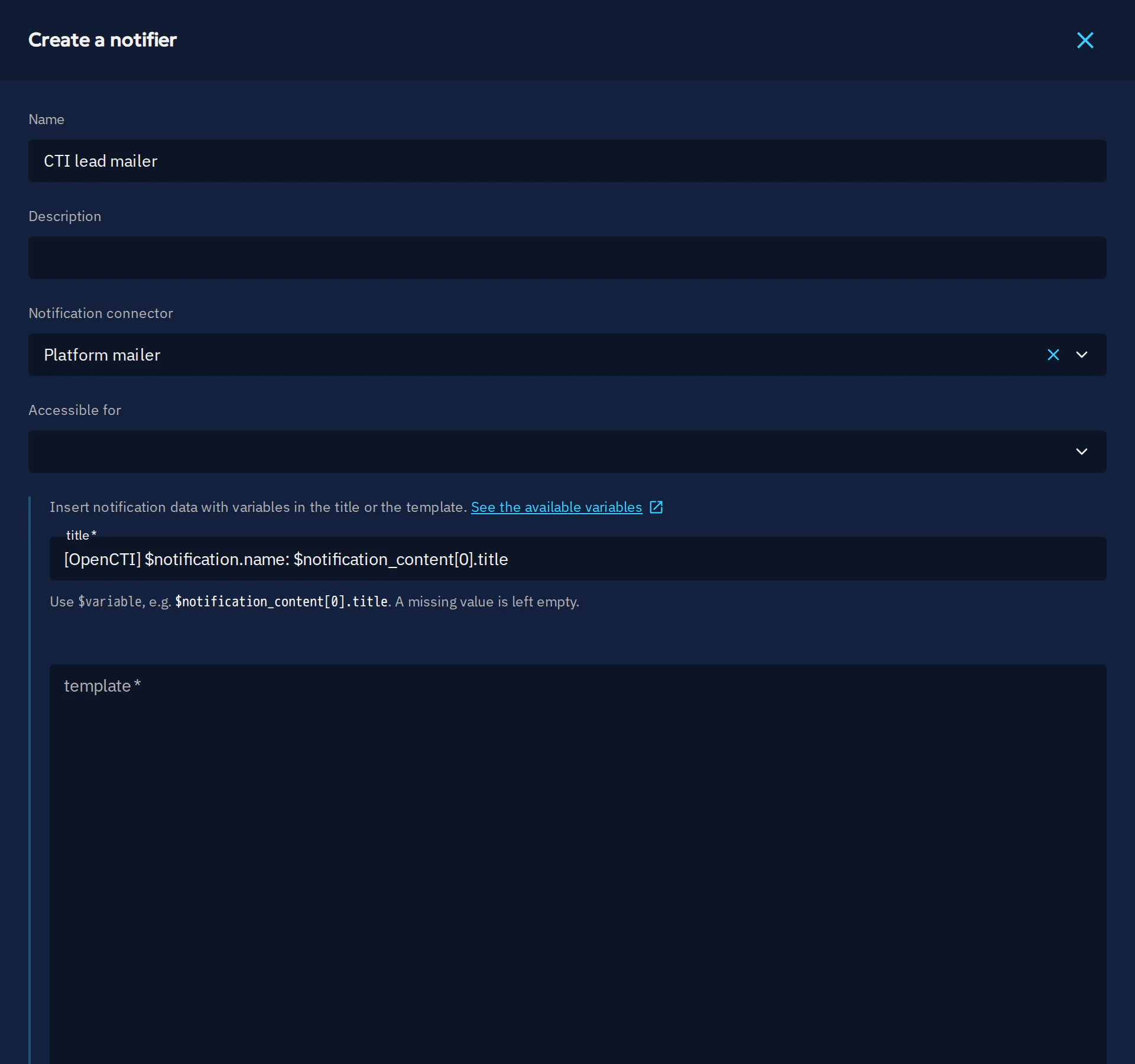
The `title` of a Platform mailer, the subject of its email, also takes variables, shorter to write than EJS tags. When you pick **Platform mailer**, the form says so above the `title` field, with a **See the available variables** link, suggests `e.g. New alert: $notification.name` in the empty field, and reminds you under it that a missing value is left empty.
- A variable starts with `$` and one of the variables of [the data a template receives](#the-data-a-template-receives): `notification`, `notification_content`, `content`, `data`, `user` or `platform_uri`. `.field` and `[index]` go further down: `$notification.name`, `$notification_content[0].title`, `$data[0].instance.name`.
- A text, a number or a true or false value is inserted as it is. A list of such values is joined with commas, for example `$data[0].instance.labels`. `.length` gives the size of a list, for example `$data.length`, the number of events.
- A path that leads nowhere, or to an object, gives an empty text: the email is sent anyway.
- Any other `$`, such as `$settings` or a price, stays as written. Variables are read outside EJS tags only, and a title can mix both.
- The subject is plain text: neither variables nor `<%= %>` escape HTML characters, so `&` stays `&`. Line breaks and runs of spaces become a single space.
The Simple mailer's title takes EJS only.
**Example: Name the trigger and the report in the email subject**
The CTI lead of Example CERT receives the alerts of the trigger "New hotel-sector reports" by email, and wants to sort them in the mailbox without opening them. The administrator creates a Platform mailer with this `title`:
```text
[OpenCTI] $notification.name: $notification_content[0].title
```
When the report "Velvet Harbor infrastructure moves to new hosting" matches the trigger, the subject reads `[OpenCTI] New hotel-sector reports: Velvet Harbor infrastructure moves to new hosting`. **Test** with **Sample Notification** sends `[OpenCTI] [TEST] Sample live trigger: [TEST] Sample report`. For a daily digest, where the first entity says little, `[OpenCTI] $notification.name: $data.length events` counts the events instead.
### A webhook body {#a-webhook-body}
The rendered webhook template must be valid JSON, because OpenCTI parses it before sending. Inside a JSON string, use `<%= %>`: it escapes quotes and line breaks for you.
```ejs
{
"text": "<%= content[0].events[0].message %>",
"link": "<%= platform_uri %>/dashboard/id/<%= content[0].events[0].instance_id %>",
"labels": <%- JSON.stringify(data[0].instance.labels || []) %>
}
```
To see everything a template receives, test a notifier whose template prints the variables, such as `<%- JSON.stringify(data) %>` in a mailer.
**Example: Post new hotel-sector reports to the SOC chat**
The SOC of Example CERT works in a chat tool whose incoming webhook takes a JSON body with a `title` and a list of `events`. The SOC lead attaches it to their own trigger "New hotel-sector reports", live or in a daily digest, so that the channel gets each message once, with one line per report, its labels and a link.
- **Name**: `SOC chat webhook`
- **Description**: `Posts notifications to the SOC channel of the chat tool`
- **Notification connector**: **Generic webhook**
- **Accessible for**: the **SOC analysts** group, so that only the SOC can post to its channel
- `verb`: `POST`
- `url`: `https://chat.example.com/hooks/soc-cti`
- `headers`: `Content-Type` set to `application/json`
- `template`:
```ejs
{
"title": "<%= notification.name || 'OpenCTI notification' %>",
"events": [<% data.forEach(function(entry, index) { %><% if (index > 0) { %>,<% } %>
{
"operation": "<%= entry.type %>",
"message": "<%= entry.message %>",
"name": "<%= entry.instance.name || '' %>",
"labels": <%- JSON.stringify(entry.instance.labels || []) %>,
"link": "<%= platform_uri %>/dashboard/id/<%= entry.instance.id %>"
}<% }) %>
]
}
```
The template loops over `data`, so it works for a live trigger, with one event, and for a digest, with many; the comma goes between events only, which keeps the JSON valid. Each `|| ''` covers a field that some events lack: the test samples carry no labels, so **Test** with **Sample Notification** or **Sample Digest** returns **OK** too. When an analyst labels the report "Velvet Harbor infrastructure moves to new hosting" with hotel-sector, the report starts to match the trigger, so the event reads as a creation, and the channel receives:
```json
{
"title": "New hotel-sector reports",
"events": [
{
"operation": "create",
"message": "[report] Velvet Harbor infrastructure moves to new hosting",
"name": "Velvet Harbor infrastructure moves to new hosting",
"labels": ["hotel-sector"],
"link": "https://opencti.example.com/dashboard/id/report--5f1a5e3c-7b8d-4c2e-9a41-3d6f0b2c8e17"
}
]
}
```
### Keep templates light {#keep-templates-light}
Templates run in a sandbox, with a time limit of 5 seconds and a memory limit. A template that loops for too long or builds very large strings fails, and its notification is not sent: the platform logs `Publisher manager notification processing error`. Use `content` for readable text and `data` only for the fields you need, and test with **Sample Digest**, the largest sample.
*(OpenCTI 7.260811 and later)*
For platform engineers, these settings bound what a notifier may take:
- `publisher_manager:webhook_timeout` (`PUBLISHER_MANAGER__WEBHOOK_TIMEOUT`), 300000 ms by default: how long OpenCTI waits for a webhook to answer.
- `notification_manager:max_digest_content_size` (`NOTIFICATION_MANAGER__MAX_DIGEST_CONTENT_SIZE`), 500 MB by default: beyond it, a digest is cut and a warning is logged.
*(OpenCTI 7.261030 and later)*
- `safe_ejs:resource_limits:max_old_generation_size_mb` (`SAFE_EJS__RESOURCE_LIMITS__MAX_OLD_GENERATION_SIZE_MB`), 50 MB by default: the memory of each template render. Raise it if large digests fail to render. See [Technical customization](https://filigran.io/docs/reference/opencti/configuration/#technical-customization).
The first two are in [Engines, schedules and managers](https://filigran.io/docs/reference/opencti/configuration/#engines-schedules-and-managers).
## What's next {#what-s-next}
- [Microsoft Teams notifier samples](https://filigran.io/docs/opencti/configure/notifiers/samples/), two Microsoft Teams templates to start from.
- [Get alerted when knowledge changes](https://filigran.io/docs/opencti/use/automate/notifications/), where users create triggers and digests.
- [Get alerted on security events](https://filigran.io/docs/opencti/configure/activity/triggers/), alerts on user activity.
- [Playbook components reference](https://filigran.io/docs/reference/opencti/playbook-components/) for **Send to notifier**.