# Manage login providers in the UI
> Create and edit OpenCTI login providers (OIDC, SAML, LDAP, headers, certificate) in the Authentications screen, map groups, and set password and session policies.
- URL: https://filigran.io/docs/lts/7.260309-lts/opencti/administer/authentications/
- Products: OpenCTI 7.260309.0-lts.8
- OpenCTI line: 7.260309 LTS · 7.260309.0-lts.8
- For: administrators
- Type: How-to guide
The **Authentications** screen holds every way users can log in to OpenCTI: the local form, the single sign-on (SSO) providers, and the platform-wide login policies. This page walks you through adding an OpenID Connect (OIDC), SAML or LDAP provider, mapping its groups, hardening the login, and recovering if you lock yourself out. Read [Configure single sign-on](https://filigran.io/docs/lts/7.260309-lts/opencti/administer/sso/) first to choose a strategy.
## Before you start {#before-you-start}
- **Edition.** Every login provider other than **Local** needs an Enterprise Edition license: OIDC, SAML, LDAP, **HTTP headers** and **Client Certificate**. Without it, you can still create providers, but their **Status** shows the Enterprise Edition chip and OpenCTI refuses the logins that go through them. The local form, the password policy, two-factor authentication, sessions and the IP allow list work without the license. See [Editions and licensing](https://filigran.io/docs/lts/7.260309-lts/start/editions/).
- **Capabilities.** **Manage authentication** opens the screen. It lets you create, edit and delete OIDC, SAML and LDAP providers, and edit the IP allow list. Some settings check another capability:
- editing **Local**, **HTTP headers** and **Client Certificate**, and **Enforce two-factor authentication**, also needs **Manage credentials**;
- **Max concurrent sessions (0 equals no maximum)** needs **Manage parameters**.
- `app:base_url` is the URL users reach OpenCTI at (see [Basic parameters](https://filigran.io/docs/lts/7.260309-lts/reference/opencti/configuration/#basic-parameters)). The callback URLs shown in the forms are built from it.
- You can register an application at your identity provider (IdP) and read the claims or attributes it returns.
- You know the password of a local account with **Manage authentication**, in case a provider fails. See [If you are locked out](#if-you-are-locked-out).
## Find your way in the screen {#find-your-way-in-the-screen}
Open **Settings > Security > Authentications**. From top to bottom, the screen shows:
- **Platform-wide settings**: **Two-factor authentication** and **Sessions**. See [Set platform-wide login policies](#set-platform-wide-login-policies).
- **Built-in strategies**: **Local**, **HTTP headers** and **Client Certificate**. They always exist: you can turn them on or off and edit them, not delete them. Their **Authentication type** is `FORM` for a login form and `SSO` for a login button.
- **SSO providers**: your OIDC, SAML and LDAP providers. **Authentication strategy** shows the protocol and the login type, such as `OIDC (SSO)` or `LDAP (FORM)`. Their **Status** is **Active**, **Disabled**, **Starting** while the provider loads, or **Error** when it is enabled but failed to start.
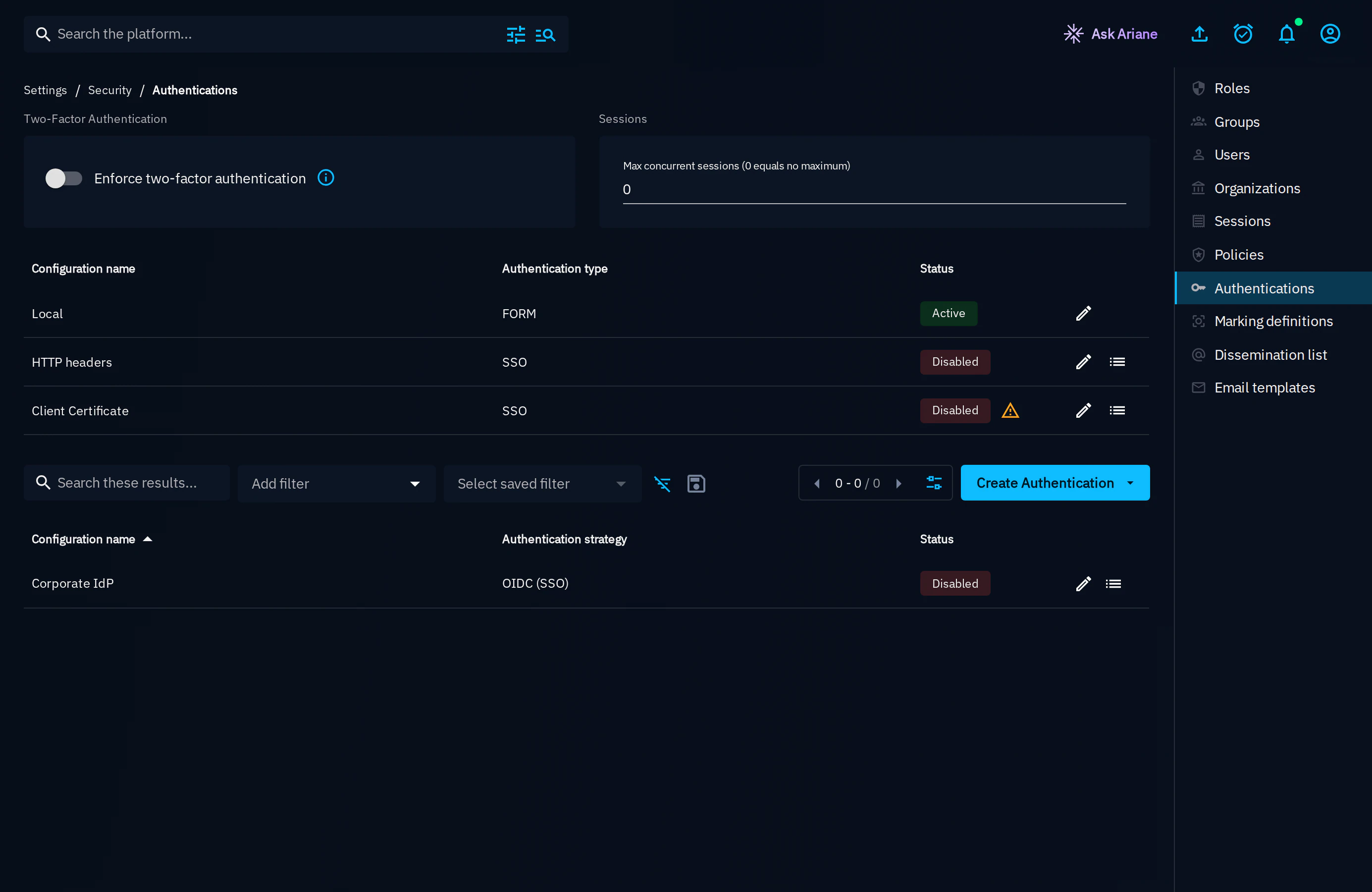
If the screen shows a banner about environment variables instead of the list of SSO providers, `app:authentication:force_env` is on. The providers then come from the configuration file, and only the password policy and two-factor authentication can change here. See [Configure single sign-on](https://filigran.io/docs/lts/7.260309-lts/opencti/administer/sso/#configure-the-providers).
## Add an OIDC provider {#add-an-oidc-provider}
1. Click **Create Authentication** and choose **Create OIDC**.
2. Enter a **Configuration name**. It names the provider in the list and, unless you set a **Login button label**, on the login button. Under the name, **Callback URL** shows `/auth//callback`. The identifier is the name in lower case, with dashes in place of other characters.
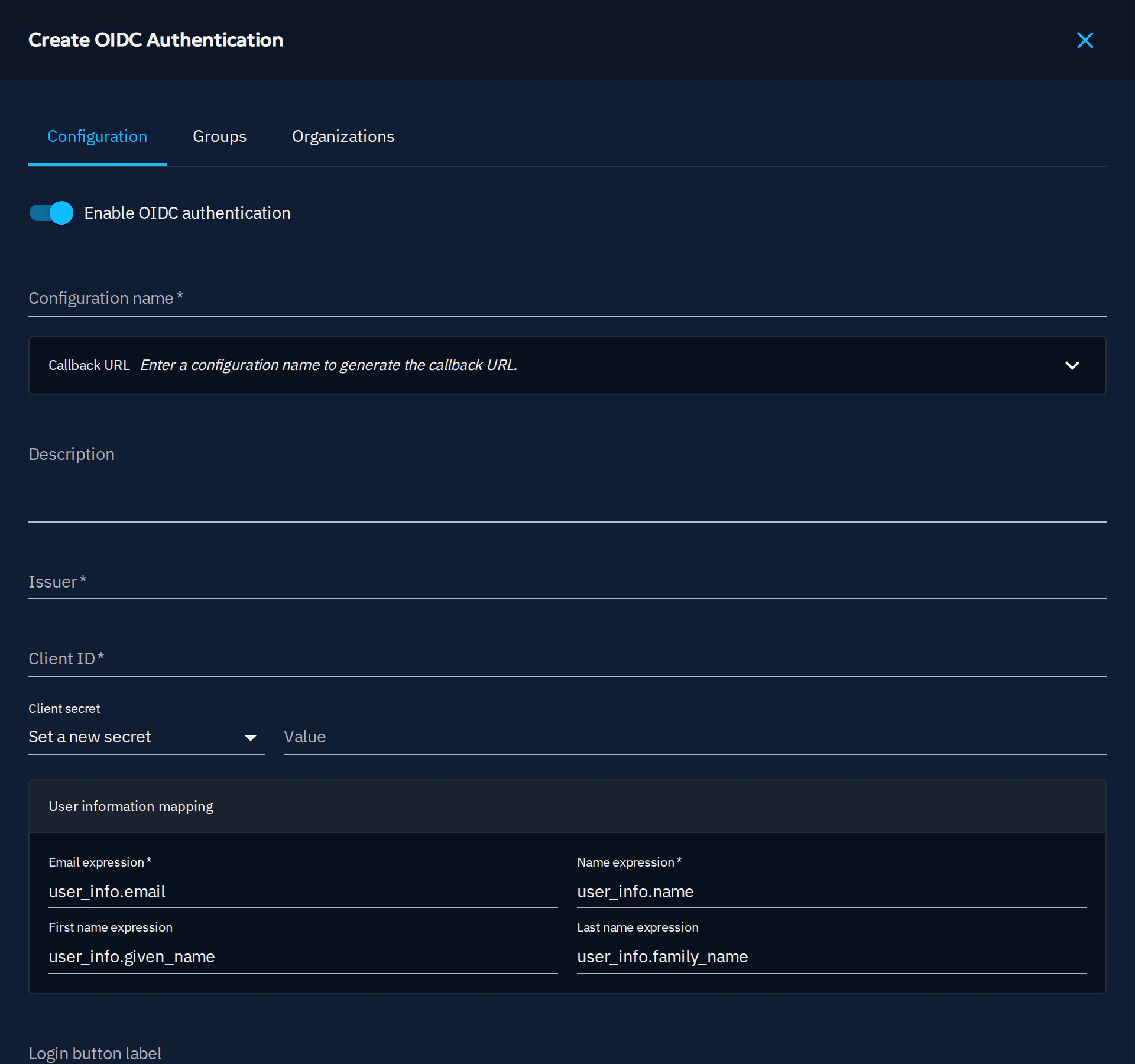
3. Register that callback URL as a redirect URI of a new client application at your IdP. To keep a URL that is already registered, open **Callback URL**:
- **Override identifier** lets you type the **Provider identifier** yourself, in lower-case letters, digits and dashes. Renaming the provider then no longer changes its URL.
- **Override callback URL** lets you type a **Callback URL override**, for example when a proxy in front of OpenCTI rewrites paths. It must still contain `/auth//callback`. Otherwise a red icon warns you, and the IdP sends users back to a URL that OpenCTI does not answer.
4. Fill in **Issuer** (the base URL of the IdP, where OpenCTI reads its discovery document), **Client ID** and **Client secret**. For the secret, choose **Set a new secret** or **Use external secret** (see [Keep secrets out of the database](#keep-secrets-out-of-the-database)).
5. Check the **User information mapping**. The defaults read the standard claims: `user_info.email`, `user_info.name`, `user_info.given_name` and `user_info.family_name`. **Email expression** and **Name expression** are required, and OpenCTI refuses a login that returns no email.
6. Open **Protocol & Scopes** if the IdP needs more than the defaults (see the table below).
7. Open the **Groups** tab and map the IdP groups (see [Map groups and organizations](#map-groups-and-organizations)). Do the same in **Organizations** if you segregate data by organization.
8. Leave **Enable OIDC authentication** on and click **Create**. The status turns **Starting**, then **Active** once OpenCTI has reached the issuer. **Error** means it could not: open **Logs**.
| Setting in **Protocol & Scopes** | Default | Effect |
| --- | --- | --- |
| **Scopes (comma-separated, defaults to openid email profile)** | `openid email profile` | The scopes OpenCTI asks for. Add the one your IdP needs to return groups, for example `groups` |
| **Audience** | Empty | Sent as the `audience` parameter of the authorization request, for IdPs that require it |
| **Logout remote** | Off | On logout, OpenCTI also sends the user to the end-session endpoint of the IdP, which ends their IdP session. When it is off, only the OpenCTI session ends, and the next click on the login button may log the user back in without a password |
| **Logout callback URL** | Empty | Where the IdP sends the user after a remote logout (`post_logout_redirect_uri`). Register it at the IdP. Used only with **Logout remote** |
| **Use proxy** | Off | OpenCTI reaches the issuer through the outgoing proxy of the platform, `HTTPS_PROXY` or `HTTP_PROXY`, unless the IdP host is in `NO_PROXY`. Turn it on when the platform has no direct internet access. See [Network and security](https://filigran.io/docs/lts/7.260309-lts/reference/opencti/configuration/#network-and-security) |
**Example: Log in with Microsoft Entra ID through OpenID Connect**
Grand Meridian Hotels signs its staff in with Microsoft Entra ID, and OpenCTI is reached at `https://opencti.example.com`. The platform reaches the internet only through the corporate proxy.
- **Configuration name**: `Entra ID`. **Callback URL** shows `https://opencti.example.com/auth/entra-id/callback`: register it as a web redirect URI of the app registration in Entra ID.
- **Login button label**: `Log in with Microsoft Entra ID`.
- **Issuer**: `https://login.microsoftonline.com/3f6c2a1e-8b4d-4e2a-9c71-5d0e8f2b7a14/v2.0`, the v2.0 endpoint of your tenant.
- **Client ID**: the application (client) ID of the app registration, for example `0b7e5c9d-2f41-4a8e-b6d3-91c4e7a20f55`.
- **Client secret**: **Use external secret**, then `entra_client_secret (env)`, defined as `SECRETS__ENTRA_CLIENT_SECRET__VALUE` in the platform configuration. The secret never reaches the database.
- **User information mapping**: keep the defaults. The userinfo endpoint of Entra ID returns `email`, `name`, `given_name` and `family_name`.
- **Protocol & Scopes**: **Use proxy** on, since `HTTPS_PROXY=http://proxy.example.com:3128` is set on the platform. **Logout remote** on, with **Logout callback URL** `https://opencti.example.com/`, so that logging out of OpenCTI on a shared front-desk workstation also ends the Entra session.
- **Groups** tab: see [the mapping example](#map-groups-and-organizations).
The login page then shows a `Log in with Microsoft Entra ID` button, and the first login of each employee creates their account.
## Add a SAML provider {#add-a-saml-provider}
Click **Create Authentication**, choose **Create SAML**, and enter a **Configuration name** in the **Create SAML Authentication** panel. The callback URL is the assertion consumer service (ACS) URL to register at the IdP. It is built and overridden the same way as for OIDC. Then fill in:
| Field | What to enter |
| --- | --- |
| **Issuer** | The identifier of OpenCTI at the IdP (its entity ID). It must match the client registered there exactly |
| **SAML URL (entry point)** | The URL of the IdP where OpenCTI sends the login request |
| **IDP certificate** | The certificate of the IdP, in PEM format, used to check its responses |
The defaults read the user from the `email` and `name` attributes, the groups from `groups` and the organizations from `organizations`. Change them to the attribute names your IdP sends.
**Want assertion signed** and **Want authn response signed** make OpenCTI reject a response whose assertion, or whose whole response, the IdP did not sign. Turn on the one your IdP signs.
To sign the requests OpenCTI sends:
- Fill in **Private key**, under **IDP certificate**.
- In **Security & Signing**, fill in **Signing certificate** and register the same certificate at the IdP.
- Choose the **Signature algorithm** and enter the **Digest algorithm** the IdP expects, for example `sha256`. The algorithm is `sha1`, `sha256` or `sha512`; **None** leaves the choice to the SAML library. Prefer `sha256` or above.
To receive encrypted assertions, fill in **Decryption private key** in **Security & Signing**, and give the matching **Decryption certificate** to the IdP. On the IdP, choose AES-128 or AES-256 (CBC or GCM) for the assertion, and RSA-OAEP-MGF1P for the key.
**Identifier format (NameID)**, in **Security & Signing**, is the NameID format OpenCTI asks for, for example `urn:oasis:names:tc:SAML:1.1:nameid-format:emailAddress`. Leave it empty unless the IdP rejects the request because of its NameID policy.
**Request behavior** changes the login request itself. Leave every switch off unless your IdP needs it:
| Setting | Effect when on, or when filled |
| --- | --- |
| **Logout remote** | On logout, OpenCTI also sends a SAML logout request to the IdP, which ends the IdP session |
| **Force reauthentication** | The IdP asks for credentials at every login, even when the user already has an IdP session |
| **Disable requested authn context** | The request no longer states how the user must authenticate. Turn it on when the IdP refuses logins made in another way, for example with Windows integrated authentication or a passwordless method |
| **Authentication context (comma-separated)** | The authentication context classes to request instead, for example `urn:oasis:names:tc:SAML:2.0:ac:classes:PasswordProtectedTransport` |
| **Disable request ACS URL** | The request no longer carries the callback URL: the IdP uses the one registered for the client |
| **Skip request compression** | OpenCTI sends the request without deflate compression, for IdPs that cannot read it |
| **SSO Binding type** | `HTTP-Redirect` or `HTTP-POST`: how the request travels to the IdP |
Paste a key or a certificate with its `-----BEGIN` and `-----END` lines and its line breaks, or on one line without those two lines. If your IdP exports PKCS12, convert it: `openssl pkcs12 -in keystore.p12 -out newfile.pem -nodes`.
> **Tip**
>
> When the IdP rejects a signed request, compare the certificate fingerprints on both sides with `openssl x509 -in signing-cert.pem -noout -fingerprint -sha256`. Then check the algorithm, the binding and the **Issuer**. Decryption fails with `oaep decoding error` when the key does not match the certificate at the IdP. It also fails when the IdP uses another OAEP digest: try SHA-1 there.
**Example: Log in through the SAML provider of a sharing community**
The Harbor sharing community runs a SAML identity provider at `idp.example.com`, where OpenCTI is registered as the client `opencti`.
- **Configuration name**: `Harbor community SSO`, which gives the callback URL `https://opencti.example.com/auth/harbor-community-sso/callback` to register at the IdP.
- **Issuer**: `opencti`, exactly as the client is named at the IdP.
- **SAML URL (entry point)**: `https://idp.example.com/realms/cti/protocol/saml`.
- **IDP certificate**: the signing certificate from the metadata of the IdP, pasted with its `BEGIN` and `END` lines.
- **Want assertion signed**: on, so that OpenCTI refuses an assertion the IdP did not sign.
- **Request behavior**: **Logout remote** on, so that leaving OpenCTI also ends the community session.
- **Groups** tab: keep `groups` in **Groups expressions** and map `harbor-analysts` to **Platform group** Harbor analysts.
Leave **Enable SAML authentication** on and click **Create**. Members of the community then log in with the button, and land in Harbor analysts when the IdP lists them in `harbor-analysts`.
## Add an LDAP provider {#add-an-ldap-provider}
LDAP checks the login and password typed in the login form against your directory. Click **Create Authentication**, choose **Create LDAP**, enter a **Configuration name** in the **Create LDAP Authentication** panel, then fill in:
| Field | What to enter |
| --- | --- |
| **LDAP URL** | The directory server, for example `ldaps://dc.example.com:636` |
| **Bind DN** and **Bind credentials** | The account OpenCTI uses to search the directory |
| **Search base** and **Search filter** | Where and how to find the user. `{{username}}` is replaced by the login typed, for example `(mail={{username}})` |
| **Group base** and **Group filter** | Where and how to find the user's groups. `{{dn}}` is replaced by the user's distinguished name, for example `(member={{dn}})` |
The defaults read the email from `mail`, the name from `givenName` and the groups from `cn`. **Enable LDAP authentication** is on by default: the login page shows the form as soon as you click **Create**.
**Search & Authentication** holds the rest. Most directories need none of it:
| Setting | Default | Effect |
| --- | --- | --- |
| **Allow self-signed certificates** | Off | Accepts a directory certificate that no trusted authority signed. Only for a test directory: anyone on the network path could then impersonate the server and read passwords |
| **Search attributes (comma-separated)** | All | The user attributes to read. Keep the ones your mapping uses, such as `mail,givenName,sn` |
| **Group search attributes (comma-separated)** | All | The group attributes to read. Keep the one in **Groups expressions**, such as `cn` |
| **Username field** and **Password field** | `username` and `password` | The names of the form fields that carry the login and the password. The OpenCTI login form always sends `username` and `password`: leave both empty, or every login fails |
| **Credentials lookup** | Empty | Stored with the provider, but this version does not use it to log in. Leave it empty |
**Example: Check logins against Active Directory**
The hotel group keeps its accounts in Active Directory, and people log in with their email address and directory password.
- **Configuration name**: `Corporate directory`.
- **LDAP URL**: `ldaps://dc.example.com:636`, so that passwords travel over TLS.
- **Bind DN**: `CN=svc-opencti,OU=Service Accounts,DC=example,DC=com`, a read-only account. **Bind credentials**: **Use external secret**, then `ldap_bind_password (env)`.
- **Search base**: `OU=Staff,DC=example,DC=com`. **Search filter**: `(mail={{username}})`, to match the email typed in the form.
- **Group base**: `OU=Groups,DC=example,DC=com`. **Group filter**: `(member={{dn}})`.
- **Search & Authentication**: **Allow self-signed certificates** off, since the domain controller has a certificate from the corporate authority, which the platform trusts.
- **Groups** tab: map `CTI-Analysts` to CTI analysts and `SOC-Analysts` to SOC analysts.
A member of the `CTI-Analysts` directory group who logs in with `ana.duval@example.com` lands in CTI analysts.
## Map groups and organizations {#map-groups-and-organizations}
The **Groups** and **Organizations** tabs work the same way for every provider except **Local**. Read [how a login provisions the account](https://filigran.io/docs/lts/7.260309-lts/opencti/administer/sso/#how-a-login-provisions-the-account) for the rules behind them.
| Setting | What it does |
| --- | --- |
| **Groups expressions** | Where to read the groups in what the IdP returns. For OIDC, use `user_info.` for the userinfo endpoint, or `tokens.id_token.` and `tokens.access_token.` for a claim inside a token. Quote a claim that contains dots: `user_info."https://idp.example.com/groups"` |
| **Groups splitter** | The character that separates several groups in one value, such as `,` |
| **Groups mapping** | Pairs of **Provider group** and **Platform group**. The platform group must exist with this exact name, or OpenCTI refuses the login, unless **Auto create groups** is on |
| **Default groups** | Groups given to every user of this provider, whatever the IdP returns |
| **Auto create groups** | Creates a mapped group that does not exist yet. The new group has no role and no marking. Its maximum confidence level is `app:group_confidence_level:max_confidence_default`, 100 by default: see [Organize users in groups](https://filigran.io/docs/lts/7.260309-lts/opencti/administer/groups/#confidence-levels) |
| **Prevent platform default groups association** | New users of this provider do not get the groups granted by default at user creation |
The **Organizations** tab has the same settings for organizations: **Organizations expressions**, **Organizations splitter**, **Organizations mapping** (**Provider organization** and **Platform organization**), **Default organizations** and **Auto create organizations**. To put users in the platform organization, map the value to the exact name of that organization. The special value `settings_platform_organization` does not work as a target in this version: OpenCTI looks for an organization with that name, refuses the login when **Auto create organizations** is off. When it is on, the user does land in the platform organization, but OpenCTI also creates an empty organization named `settings_platform_organization`.
To find the right expression, log in once, click **Logs** on the row of the provider and open an entry. Its details show every claim the IdP returned. For example, groups in a custom claim of the ID token need the expression `tokens.id_token._groups`. A mapping then turns `Admin` into `Administrators`.
**Example: Map Entra ID groups found in the ID token**
With the groups claim turned on in the app registration, Entra ID puts the object IDs of the user's groups in the ID token, not their names:
```json
{
"email": "ana.duval@example.com",
"name": "Ana Duval",
"groups": ["8d2f4c1a-6b3e-4f7d-9a21-0c5e7b9d3f48", "5a90e3d2-7c14-4f8b-a6e5-3b21d9c8f710"]
}
```
In the **Groups** tab of the Entra ID provider:
- **Groups expressions**: `tokens.id_token.groups`.
- **Groups mapping**: **Provider group** `8d2f4c1a-6b3e-4f7d-9a21-0c5e7b9d3f48`, **Platform group** `CTI analysts`. Add a second line for the Entra group of the SOC, mapped to `SOC analysts`.
- **Auto create groups**: off, so that a typing error blocks the login instead of creating an empty group.
- **Prevent platform default groups association**: on, so that Entra users get only the groups you mapped.
Ana lands in CTI analysts only: the second object ID has no mapping and is ignored.
## Keep secrets out of the database {#keep-secrets-out-of-the-database}
Client secrets, private keys and bind credentials can be stored in two ways:
- **Set a new secret** stores the value in the database, encrypted with the platform encryption key. When you edit the provider, **Keep existing secret** leaves it unchanged.
- **Use external secret** stores only the name of a secret defined in the OpenCTI configuration. OpenCTI reads its value when the provider starts.
Define an external secret as `SECRETS____VALUE`: it appears in the list as ` (env)`. To fetch it from CyberArk instead, set `SECRETS____CREDENTIALS_PROVIDER__SELECTOR=cyberark` and the CyberArk variables:
```bash
SECRETS__OIDC_CLIENT_SECRET__CREDENTIALS_PROVIDER__SELECTOR=cyberark
SECRETS__OIDC_CLIENT_SECRET__CREDENTIALS_PROVIDER__CYBERARK__URI=https://cyberark.example.com/AIMWebService/api/Accounts
SECRETS__OIDC_CLIENT_SECRET__CREDENTIALS_PROVIDER__CYBERARK__APP_ID=opencti
SECRETS__OIDC_CLIENT_SECRET__CREDENTIALS_PROVIDER__CYBERARK__SAFE=cti
SECRETS__OIDC_CLIENT_SECRET__CREDENTIALS_PROVIDER__CYBERARK__OBJECT=oidc
SECRETS__OIDC_CLIENT_SECRET__CREDENTIALS_PROVIDER__CYBERARK__FIELD_TARGETS=["client_secret"]
```
OpenCTI splits the CyberArk content on `:` and gives each part to a field of `FIELD_TARGETS`, in order. When a value itself contains `:`, choose another separator with `SECRETS____CREDENTIALS_PROVIDER__CYBERARK__DEFAULT_SPLITTER`. If CyberArk cannot be reached, OpenCTI logs `Remote credentials data fail to fetch, fallback`, and a provider whose required secret is missing shows the **Error** status. Each field then appears in the **Use external secret** list as `: (cyberark)`, here `oidc_client_secret:client_secret (cyberark)`.
## Add a setting the form does not show {#add-a-setting-the-form-does-not-show}
Each OIDC, SAML and LDAP form ends with **Extra configuration**. Click **+**, choose a type, and enter the key and the value of an option of the underlying Passport library. OpenCTI passes it as is.
## Configure the built-in strategies {#configure-the-built-in-strategies}
Click **Update** on the row of a built-in strategy to edit it, in the **Update Local Authentication**, **Update HTTP Headers Authentication** or **Update Client Certificate Authentication** panel.
**Local** is the email and password form. Its panel turns it off with **Enable local authentication** and sets the **Local password policies**. The policies set the minimum and maximum length, and the minimum number of symbols, digits, words, lowercase and uppercase characters. `0` means no constraint.
Before you turn local login off, log in through another provider and check the groups and organizations you got. The switch stays locked while no other provider is enabled.
**HTTP headers** logs users in from headers that a reverse proxy sets after authenticating them. Turn on **Enable header authentication**, then enter the header names in the **User information mapping** (by default `x-email`, `x-name`, `x-firstname` and `x-lastname`) and in the **Groups** tab. **Logout URI** is saved with the strategy, but this version does not use it: after logout, OpenCTI sends the user back to the page they came from, and the proxy headers can log them in again at the next click on the login button. **Headers audit** lists other headers whose values OpenCTI records in the activity log with every action of these users, for example the `x-request-id` header that your proxy adds: click **Add**, then enter a **Header name**. Only use this strategy behind a proxy that removes these headers from incoming requests: anyone who can send them directly can log in as anyone.
**Client Certificate** logs users in with a certificate chosen in the browser. Turn on **Enable client certificate authentication**. By default it reads the email from `subject.emailAddress`, the name from `subject.CN`, the groups from `subject.OU` and the organizations from `subject.O`. Leave the first and last name expressions empty when your certificates have no such fields. It needs OpenCTI to serve HTTPS itself (`app:https_cert:*`, see [Network and security](https://filigran.io/docs/lts/7.260309-lts/reference/opencti/configuration/#network-and-security)). Otherwise its status stays **Disabled**, with the warning **Client certificate requires the platform to be configured with HTTPS**.
## Set platform-wide login policies {#set-platform-wide-login-policies}
- **Enforce two-factor authentication** makes every user set up a one-time code application before they can use the platform.
- **Max concurrent sessions (0 equals no maximum)** limits how many sessions a user can have at the same time. When a login goes over the limit, OpenCTI ends the user's oldest sessions.
**Example: Harden the login of the hotel group platform**
Grand Meridian Hotels lets its staff in from the head office network only, and requires a second factor from everyone.
- **Enforce two-factor authentication**: on.
- **Max concurrent sessions (0 equals no maximum)**: `2`, one session on the workstation and one on a laptop.
- **Local password policies** of **Local**: minimum length `14`, at least `1` symbol, `1` digit and `1` uppercase character.
- **Enable IP allow list**: on. **Allowed IP addresses**: `198.51.100.0/24`, the head office range, and `203.0.113.17`, the VPN gateway.
- **Excluded from IP check**: keep the three entries OpenCTI added, and add the SOC analysts group, whose members work from the outsourced SOC.
A login from the guest Wi-Fi of a hotel is then refused, unless the user belongs to SOC analysts, and the connectors in the Connectors group keep working.
## Check that it works {#check-that-it-works}
1. Open the login page in a private window: each enabled provider shows its button, or the login form for LDAP.
2. Log in as a test user of each mapped IdP group, then check the user's groups in **Settings > Security > Users**.
3. If the login fails, click **Logs** on the row of the provider. It keeps the last 50 entries, each with **Timestamp**, **Level**, **Message** and **Details**. **Refresh** loads the new ones. **View full details** opens **Log details**, with everything the IdP returned, and **Previous log** and **Next log** move between entries.
## If you are locked out {#if-you-are-locked-out}
Add the setting to the configuration file or as an environment variable, and restart. Log in, fix the cause, then remove the setting and restart again.
| Situation | Setting | Effect |
| --- | --- | --- |
| Local login is off, and you know the password of a local account that has **Manage authentication** | `app:authentication:force_local=true` | The local form shows again, whatever the screen says. Turn **Local** back on, then remove the setting |
| Same, but the platform administrator is locked by `app:admin:externally_managed` | `app:admin:externally_managed=false` and `app:authentication:force_local=true` | The administrator defined by `app:admin:email` and `app:admin:password` is active again and can use the local form |
| SSO worked before the upgrade to 7.260224 and fails since | `app:authentication:force_env=true` | Providers come from the configuration file again. OpenCTI deletes the providers stored in the database, and migrates them again at the next start without the setting |
## What's next {#what-s-next}
- [Configure single sign-on](https://filigran.io/docs/lts/7.260309-lts/opencti/administer/sso/), how a login provisions the account and how to keep an emergency access.
- [Organize users in groups](https://filigran.io/docs/lts/7.260309-lts/opencti/administer/groups/), to prepare the groups your providers map to.
- [Manage users](https://filigran.io/docs/lts/7.260309-lts/opencti/administer/users/), to check the accounts your providers create.
- [Cookies](https://filigran.io/docs/lts/7.260309-lts/opencti/administer/cookies/), for session duration and cookie security.
- [OpenCTI configuration reference](https://filigran.io/docs/lts/7.260309-lts/reference/opencti/configuration/), for every key named on this page.